Projects
Create and manage the projects that organize your application's authentication
Overview
A project represents one application (or one environment of an application) in Hawcx. Each project has its own Config IDs, users, analytics, and audit trail. The Projects page is where you create projects and manage the applications connected to Hawcx.
What you see depends on your role: Customer Admins see all projects in the organization, while developers and viewers only see projects they've been assigned to.
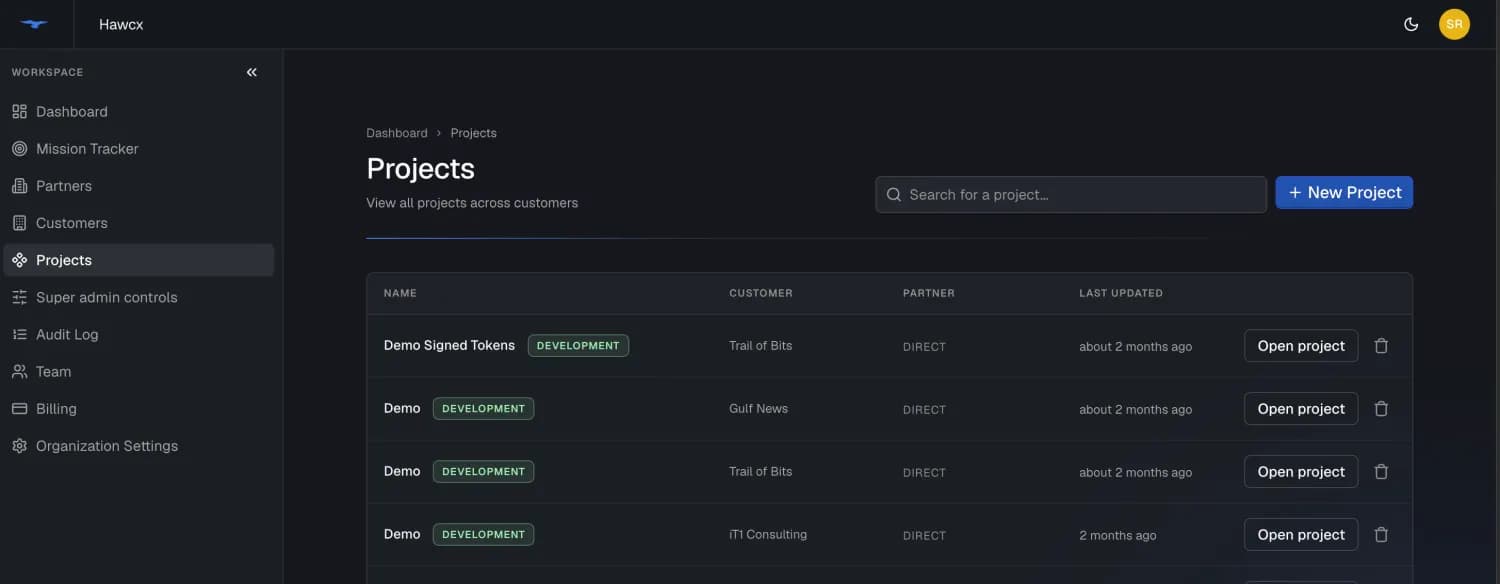
Create a project
Only users with the Customer Admin role can create projects.
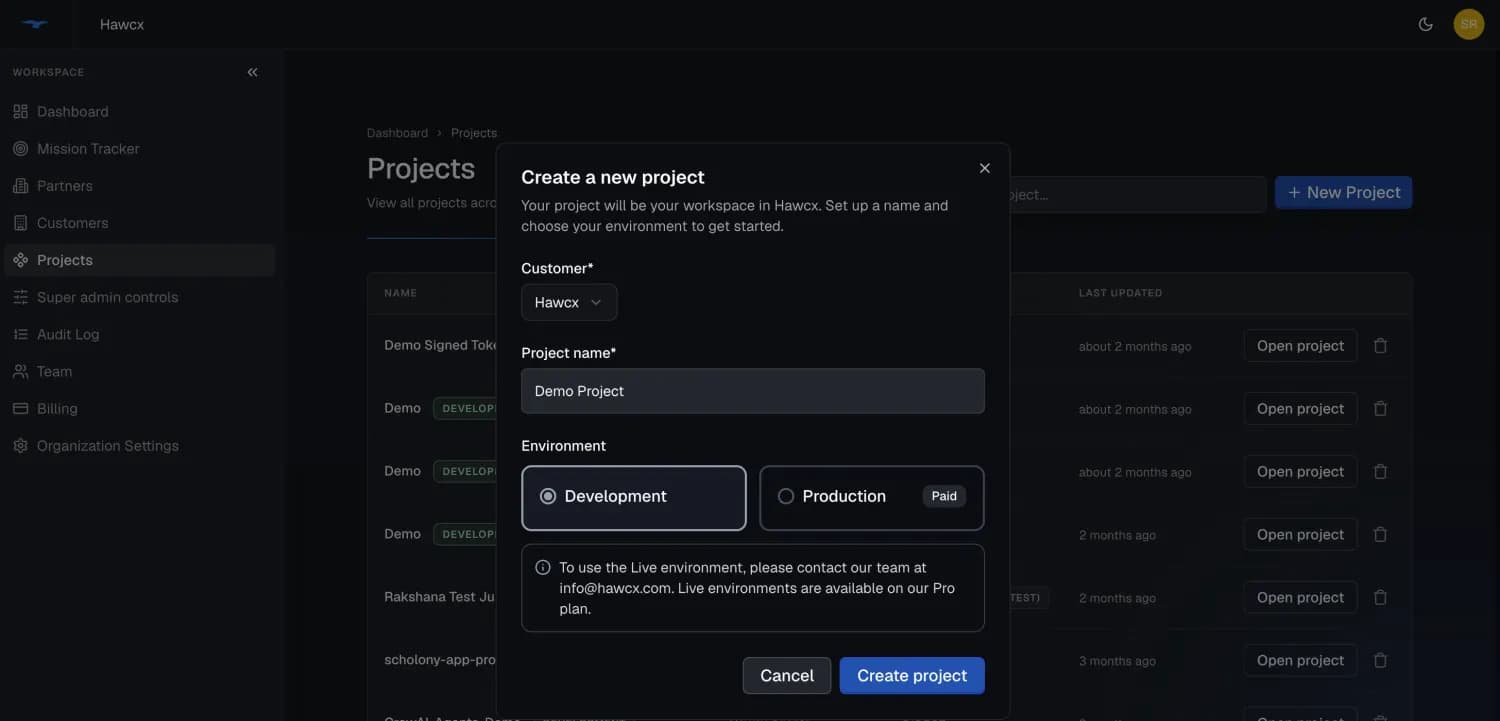
- From the Projects page, click New Project
- Enter a name for your project
- New projects are created in Development. To run in Production, contact Hawcx to have a production environment provisioned
- Click Create project
Environments
Each project belongs to one environment:
| Environment | Purpose | Config ID provisioning |
|---|---|---|
| Development | Testing and staging | Shown in Project → Settings as soon as the project is created |
| Production | Live applications | Provisioned by Hawcx on request. Contact support |
Switch between environments using the toggle in the top bar.
Project list
The project list gives you a quick way to identify the right application before opening its details.
| Column | Description |
|---|---|
| Project Name | Your application name |
| Environment | DEVELOPMENT or PRODUCTION badge |
| Created | When the project was created |
Use the environment badge to avoid mixing setup or debugging work across development and production projects.
Filters
Use filters when you want to narrow a long project list.
| Filter | Description |
|---|---|
| Search | Filter by project name or description |
Each project also carries a DEVELOPMENT or PRODUCTION badge, so you can tell environments apart at a glance. Results are paginated with 10 projects per page.
Project detail pages
Open a project to manage settings and activity for that application only. Project-level pages are useful when you want to inspect one integration without mixing it with organization-wide activity.
| Page | Description |
|---|---|
| Home | Project overview and authentication analytics |
| Audit Log | Project-specific action history |
| Users | Users authenticating with this project |
| Settings | Project configuration and Config IDs |
Managing project users
The Users tab shows the people who have authenticated with a project. Use it when you need to investigate a user, check their connected devices, or revoke access for a device.
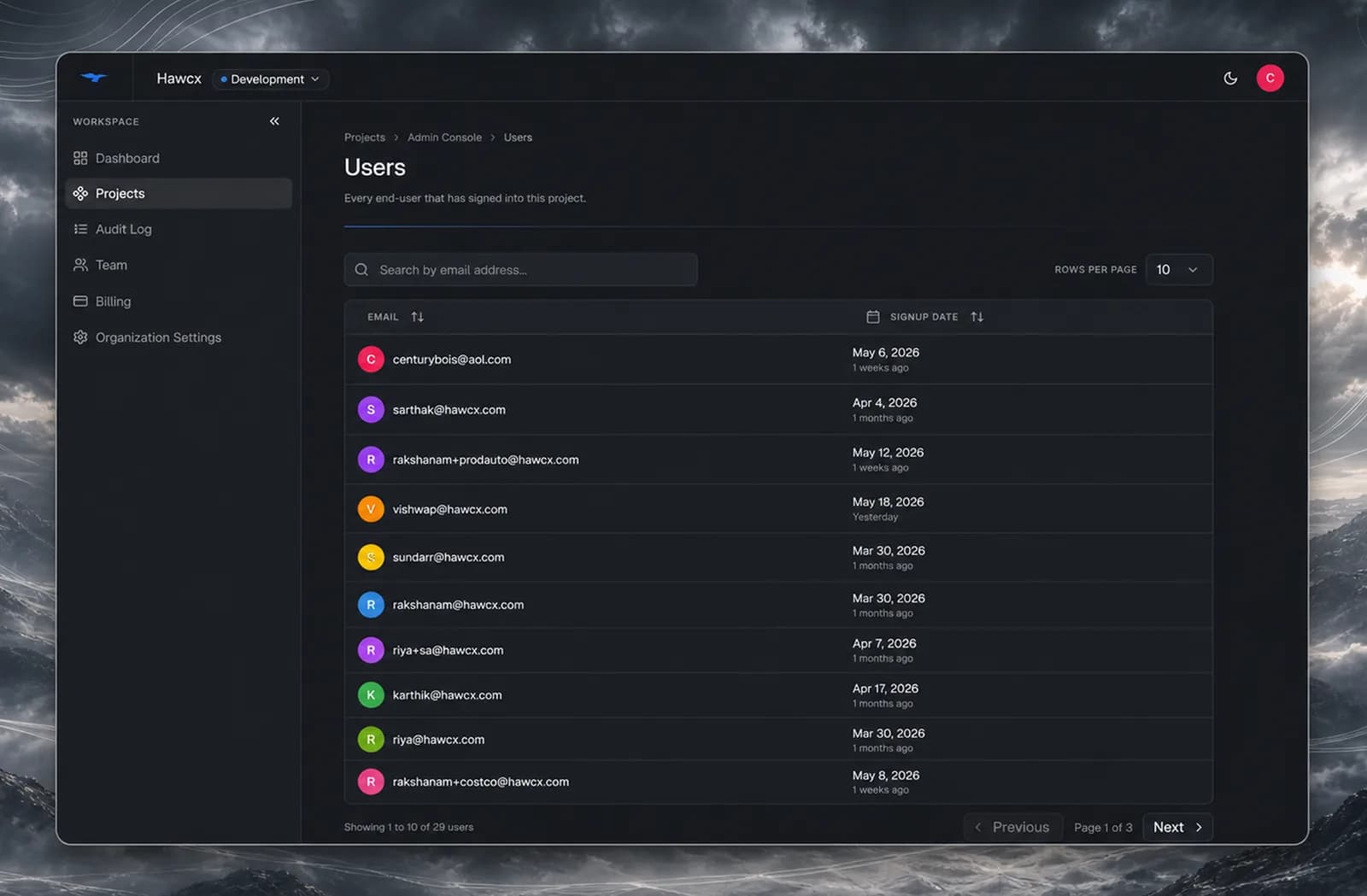
- View all users who have authenticated with the project
- Click View Details on any user to see their connected devices, signup date, and activity
- Revoke or Restore access for specific devices from the detail view
Revoking a device affects that device's access to the selected project. Restoring access allows the device to authenticate again.
Delete a project
Deleting a project is permanent and can only be done by a Customer Admin.
- Hover over the project card
- Click the Trash icon
- Confirm the action
Warning: Deleting a project permanently removes all associated data, including Config IDs, user assignments, and analytics. Any app using this project's Config IDs will immediately stop working.
Next steps
- Get your Config ID to connect your app to Hawcx
- Configure the auth flow to choose how users verify their identity
- Assign teammates to this project
Last updated on