Team Management
Invite and manage team members with role-based access control
Overview
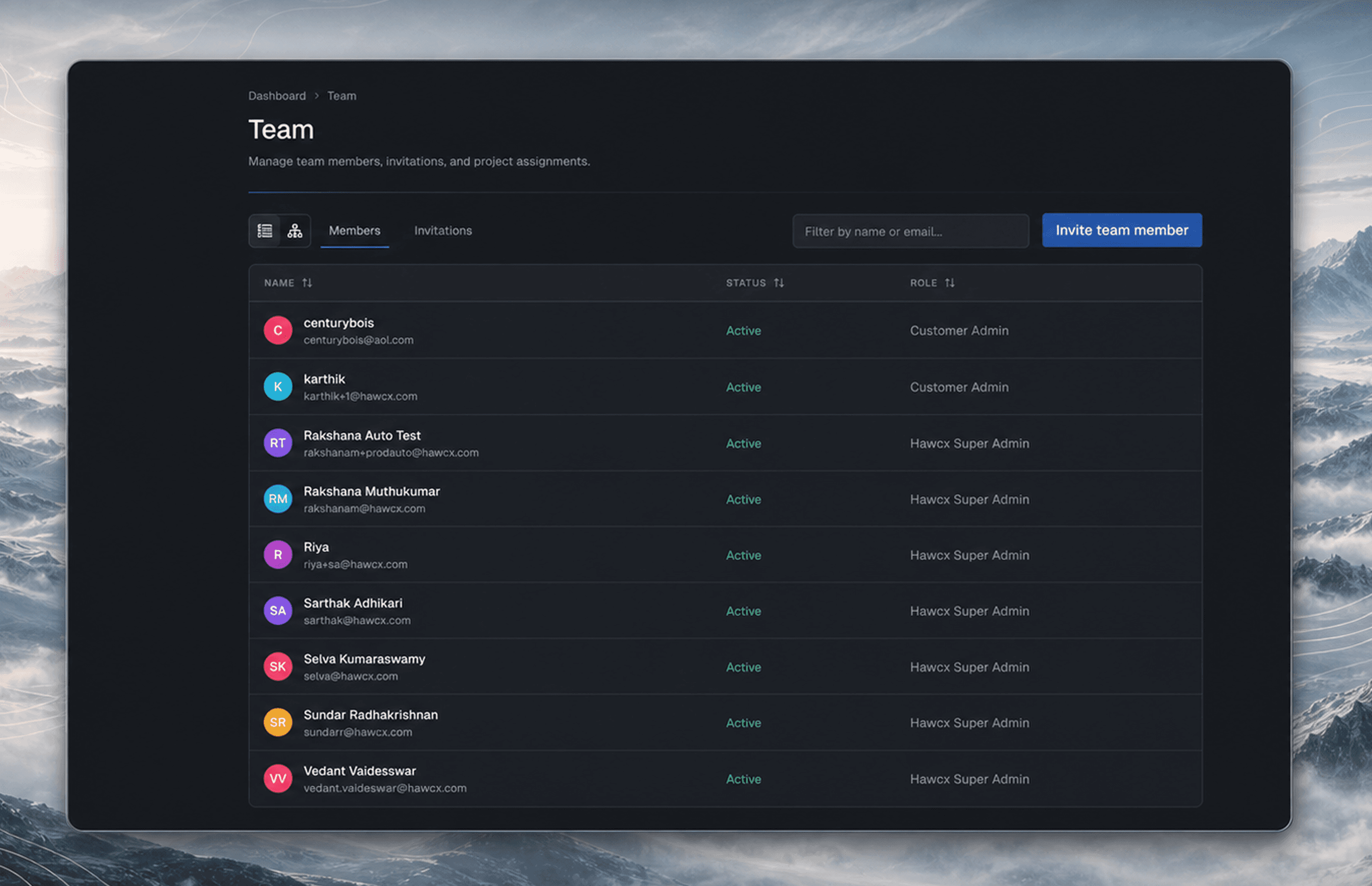
The Team page is where admins invite, manage, and organize team members. You can view your team as a table or as a hierarchy tree.
Roles
Hawcx uses role-based access control. The role you assign determines what a team member can see and do.
| Role | What they can do |
|---|---|
| Admin | Full access: create projects, manage team, view audit logs and billing, configure organization settings |
| Developer | Access assigned projects only. Can view analytics, generate development Config IDs, and request production Config IDs |
| Viewer | Read-only access to assigned projects with no creation or write capabilities |
For a detailed breakdown of all permissions, see Roles & Permissions.
Invite a Team Member
The video below shows the invitation flow from the Team page: opening the invite dialog, entering member details, choosing a role, and sending the invitation.
- Click Invite Member
- Enter their name and email
- Select a role (Admin, Developer, or Viewer)
- If Developer or Viewer, select which projects they can access
- Click Send invitation
An email with a secure signup link is sent. The invite appears in the Invitations tab as pending.
Manage Existing Members
Edit a User
Click the More (...) menu next to a user and select Edit User. You can change their role and project assignments. The organization creator cannot be modified.
Remove a User
Click More (...) > Remove User. This revokes their access to the organization and all projects.
Manage Invitations
In the Invitations tab:
- Resend a pending invitation (generates a new token)
- Cancel a pending invitation
Filters
| Filter | Options |
|---|---|
| Role | All, Admin, Developer, Viewer |
Next Steps
- Roles & Permissions for a detailed permission matrix
- Projects to manage project access